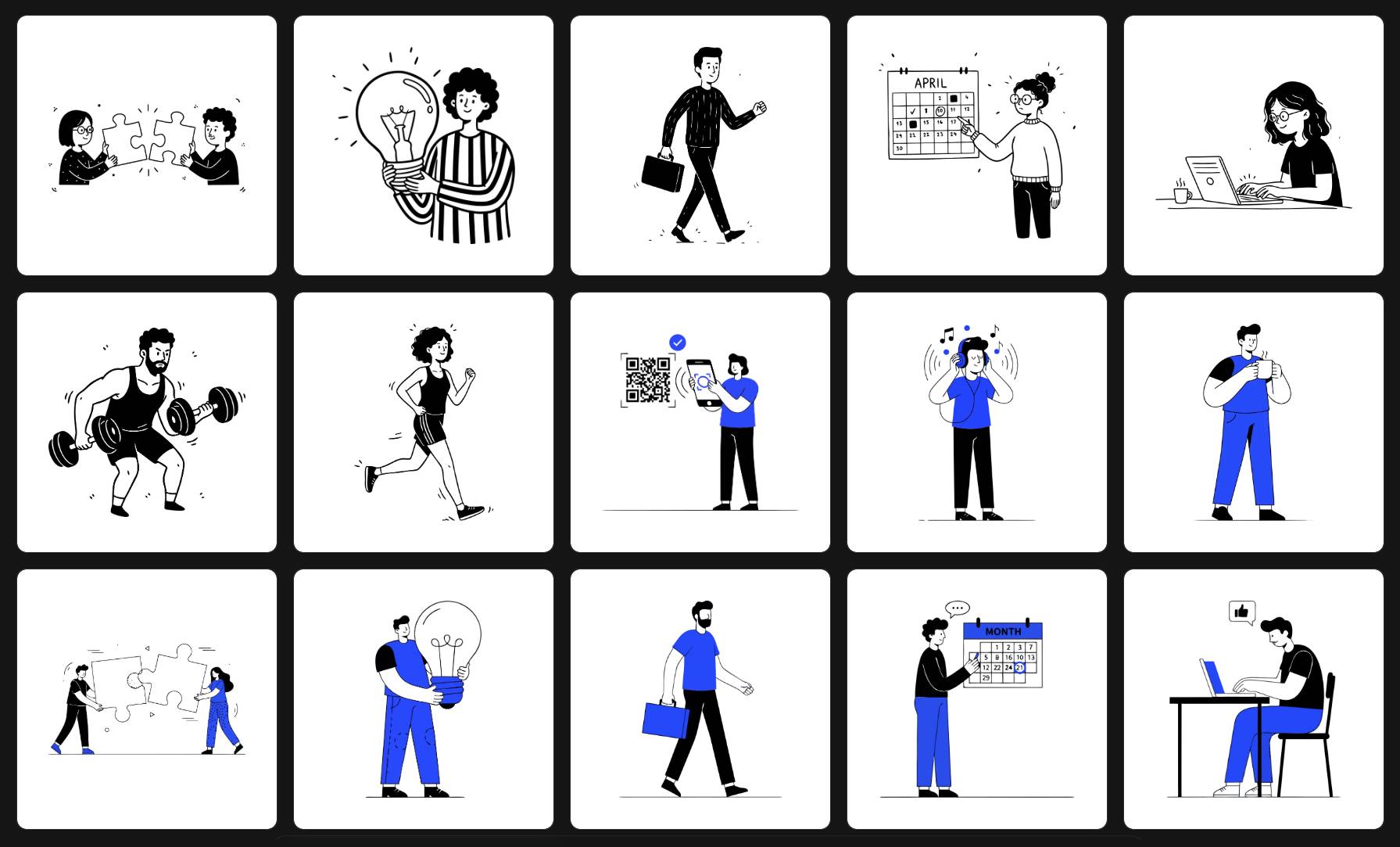
From Mess to Masterpiece: A Deep Dive into Production-Ready AI Vector Graphics

The Broken Promise of "Instant" Vectors
AI text-to-SVG generators like Vectify and IconScout AI make a powerful promise: type a phrase, get a scalable vector. But as many designers and developers have discovered, the reality is often a frustrating mess. The generated file might look like an SVG, but the moment you try to use it, you're faced with a technical nightmare.
This guide explores the critical difference between a "messy" AI vector and a "production-ready" one, and shows you what to look for in a professional-grade tool.
Anatomy of a Messy AI-Generated SVG
A low-quality AI vector isn't just an inconvenience; it's a workflow killer. Here’s what's happening under the hood and why it's so problematic:
1. The "Path Explosion" Problem
A simple shape, like a circle, should be defined by a handful of anchor points (nodes). However, many AI tools create shapes with hundreds or even thousands of redundant nodes.
- Why it's bad: This makes the file size unnecessarily large, but more importantly, it makes editing the shape's curve or size a nightmare. Trying to adjust a single curve can feel like wrestling with a tangled mess of wires.
- What to look for: A clean SVG uses the minimum number of nodes required to define a shape.
2. Illogical Grouping and No Layers
Professional design files are organized. A character might have its head, arms, and torso grouped separately. A messy SVG often has no logical structure at all. Paths are randomly ordered, making it impossible to select and modify a specific part of the illustration, like changing a shirt color without affecting the background.
3. Broken Paths and Unclosed Shapes
Often, what looks like a solid shape is actually a collection of disconnected lines that don't quite meet. This becomes obvious when you try to apply a fill color and it "leaks" out, or when you resize the vector and strange gaps appear.
What Does "Production-Ready" Actually Mean?
A production-ready vector, like those generated by SVGs.app, is built differently. It's designed to be used immediately in a professional workflow.
- Clean, Optimized Paths: Our AI models are specifically trained to prioritize clean geometry. We generate paths that are not only visually correct but also structurally simple and editable.
- Logical Structure: We aim to group related elements, making it intuitive to select and modify parts of the illustration.
- True Scalability: Our SVGs are built with proper vector principles, ensuring they scale perfectly from a tiny icon in your app to a massive billboard, with no artifacts or degradation.
The Litmus Test: A Quick Tutorial to Check Your SVG Quality
Don't take our word for it. Here’s how you can test the quality of an SVG from any generator:
- Open it in a Vector Editor: Import the SVG into a tool like Figma, Adobe Illustrator, or Inkscape.
- Select a Curved Line: Use the direct selection tool to click on a curved part of the illustration.
- Count the Nodes: Are you seeing 2-4 nodes with clean Bézier handles, or are you seeing a dozen tiny nodes clumped together? The former is a sign of quality; the latter is a red flag.
- Try to Recolor an Element: Select what looks like a single object (e.g., a character's hat). Does the selection encompass only the hat, or does it grab random parts of the background too?
The Bottom Line
The goal of an AI vector generator should be to save you time, not create a new cleanup task. While many tools can produce a visually appealing image, only a few, like SVGs.app, are obsessed with the underlying code quality that defines a truly professional and usable vector asset. Stop fighting with messy code and start generating vectors that are ready for production from the moment they're created.